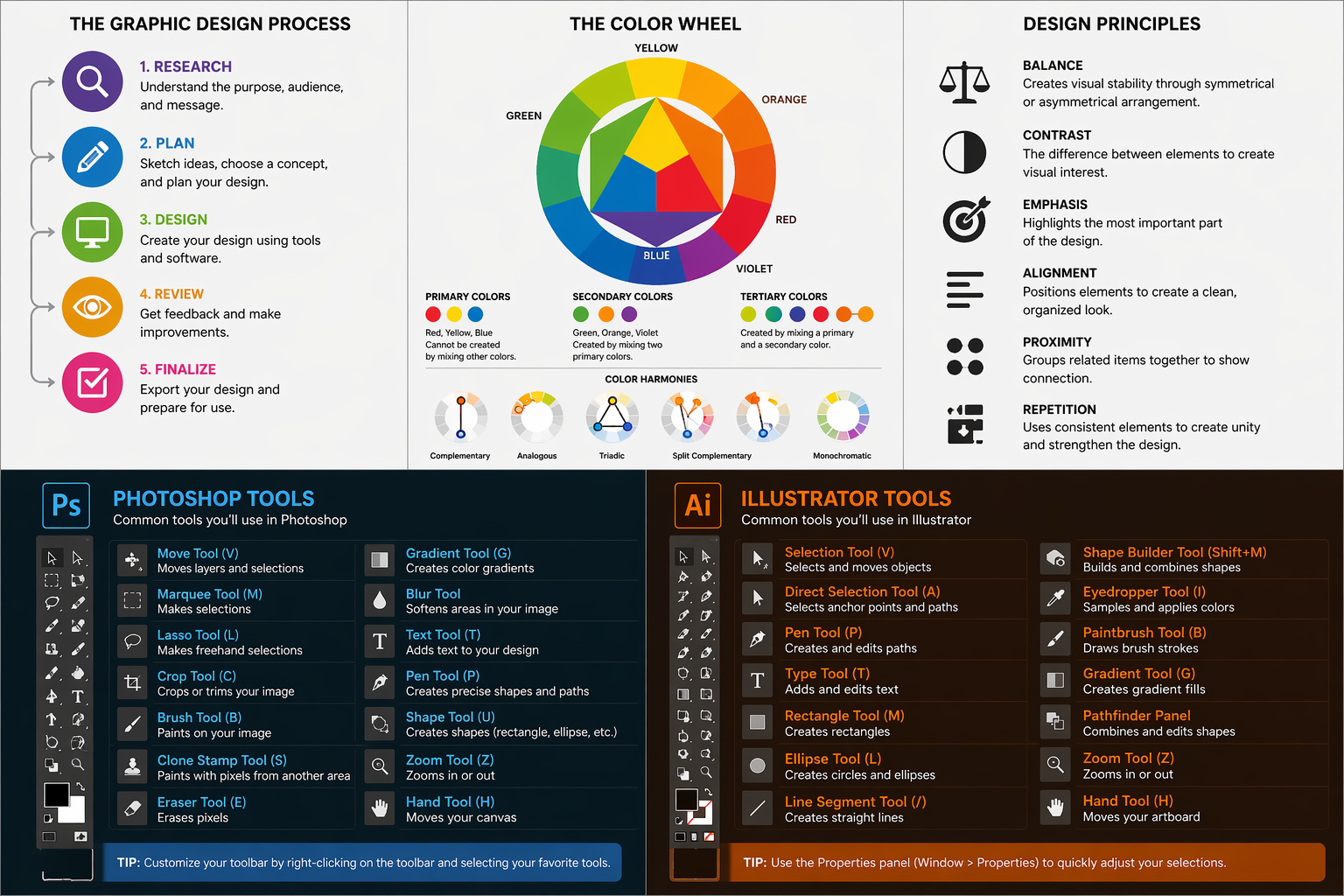
Digital Graphic Arts

Design Help!
How to Save Your Work (VERY Important)
- Always save your file as you work
- Use File → Save As the first time
- Name your file clearly:
YourName_ProjectName - Example:
Kaelah_LogoDesign
File Types to Know:
- .PSD (Photoshop file) → keeps layers (editable)
- .AI (Illustrator file) → keeps vector work (editable)
- .JPG → small file size, good for sharing
- .PNG → high quality, supports transparent background
Tip: Always keep your original file (.PSD or .AI) before exporting!
How to Export Your Design
- Go to File → Export → Export As
- Choose PNG or JPG
- Use PNG if you want better quality or transparency
Save Often
- Press Ctrl + S (Windows) or Command + S (Mac)
- Get in the habit of saving every few minutes
Keep Your Files Organized
- Create a folder for this class
- Inside it, create folders like:
- Logos
- Photoshop Projects
- Illustrator Projects
This will save you time and stress later
Layers Are Your Best Friend
- Always check your Layers Panel
- Name your layers (ex: “text”, “background”, “image”)
- This helps you stay organized and edit easily
Undo Is Your Safety Net
- Press Ctrl + Z (Windows) or Command + Z (Mac)
- Made a mistake? No problem. Just undo it
Zoom In and Out
- Zoom in to fix details
- Zoom out to see the whole design
Shortcuts:
- Ctrl + + (zoom in)
- Ctrl + - (zoom out)
Grading Breakdown
90–100: Excellent (A)
Student completed the assignment fully, demonstrated the skill taught, and created a thoughtful, polished design.
80–89: Good (B)
Student completed the assignment and showed understanding of the skill but may need more refinement or creativity.
70–79: Satisfactory (C)
Student completed most requirements but needs improvement in design choices, effort, or technical skills.
60–69: Needs Improvement (D)
Assignment is incomplete, missing requirements, or shows limited understanding of the skill.
0–59: Incomplete (F)
Assignment was not submitted or shows little evidence of effort or understanding.