
Master the Pen Tool!
Pen Tool Basics: Creating Magazine Illustrations
Proverbs 22:29
“Wisdom is supreme, so get wisdom. And whatever else you get, get understanding.”
"Do you see a man skilled in his work? He will stand in the presence of kings."
Have you ever wondered how graphic designers create smooth logos, beautiful illustrations, and perfectly curved shapes?
One of their most powerful tools is the Pen Tool!
Today, you will learn how to use the Pen Tool in Adobe Illustrator to create your own vector illustrations. You will then use your new skills to design artwork for our class magazine.
But first, let's play a game!

1. Warm-Up:
Play the Pen Tool Game
The Pen Tool Challenge
Start here before opening Illustrator.
Play the Pen Tool Game
Your first mission is to practice controlling the Pen Tool through Adobe's interactive game.
As you play, pay attention to how clicking and dragging changes the shape of your lines.
Your challenge:
- Complete as many levels as you can in 10 minutes.
- Practice making both straight lines and smooth curves.
- Try to complete each shape using as few anchor points as possible.
- If you make a mistake, try again!
Don't worry if it feels difficult at first. Every professional designer started as a beginner.
2. What Is the Pen Tool?
The Pen Tool allows you to draw precise lines, cur ves, and custom shapes by placing points on your artboard.
Unlike drawing with a pencil, you do not have to draw every part of a line by hand. Instead, you tell Illustrator where the line should go by placing and adjusting anchor points.
The Pen Tool is especially useful for creating logos, icons, illustrations, and decorative graphics.
Straight lines
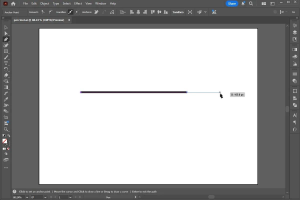
Click once to create an anchor point. Click somewhere else to connect the points with a straight line.
Curved lines
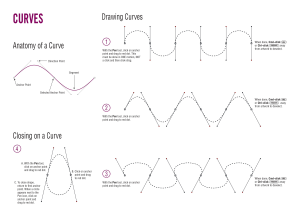
Click and drag to create a curved segment. Adjust the direction handles to control the curve.
Closed shapes
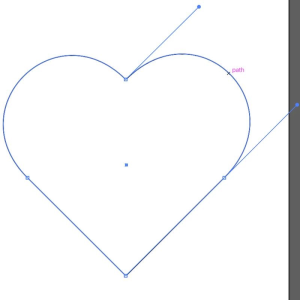
Click your first anchor point again to close the path and create a complete shape.
3. Understanding Vector Graphics
When you create artwork with the Pen Tool in Illustrator, you are creating vector graphics.
Vector graphics are made from mathematical paths rather than pixels.
This means you can make your illustration as large or as small as you want without losing its sharpness.
Imagine creating a tiny illustration for a magazine page. That same illustration could later be enlarged for a poster and still look crisp!
This makes vector illustrations perfect for professional graphic design.
4. Practice: Your First Pen Tool Drawing
Open Adobe Illustrator and create a new document.
Before working on your magazine, practice making these three shapes.
Pen Tool Practice

A star
Straight lines

A heart
Smooth curves

A leaf
Mixed lines
- 0 of 3 completed
Experiment with fill colors, stroke colors, and stroke thickness to make your drawings more interesting.
Remember, fewer well-placed anchor points often produce smoother illustrations.
5. In-Class Magazine Project: Create Your Own Illustrations
Now it's time to put your new skills to work!
Our class is creating a magazine, and illustrations can make articles more interesting, help readers understand a topic, and give each section its own personality.
Your mission is to create two original vector illustrations that could be used in our magazine.
You may create artwork for an article header or a section divider.
Illustration inspiration

Encouragement
A book, heart, light bulb, or growing plant.

Entertainment
Popcorn, a game controller, or music notes.

What's Happening
A microphone, camera, or newspaper.

Events
A calendar, balloons, or a clock.
These are examples to inspire you. Your illustrations should be your own creations!
Your project requirements
Each illustration must:
Be created primarily using the Pen Tool in Adobe Illustrator.
Include at least one curved shape and one straight-edged shape.
Use two or more colors.
Have clean, closed shapes where appropriate.
Be appropriate for a magazine article or section.
Be saved in an editable Illustrator file.
You can use other Illustrator tools to add finishing touches, but the Pen Tool should be the main tool you use to create your artwork.
6. Connect Your Work to Scripture
Proverbs 22:29 reminds us that developing skill in our work matters.
Learning a new tool takes patience. Your first illustration might not look exactly how you imagined, but every time you practice, you become more skilled.
A professional designer does not become skilled overnight. Skill develops through practice, attention to detail, and a willingness to improve.
As you work today, remember that doing your best is not the same as being perfect. It means putting effort into learning and improving the work you have been given.
Think about this: How can practicing a difficult skill help you develop patience and diligence?
7. Homework: Finish Two Magazine Illustrations
Your homework checklist
Finish illustration #1.
Finish illustration #2.
Check that your lines and curves are smooth and clean.
Save your editable Adobe Illustrator (.ai) file.
Export your illustrations as PNG files and submit your work in Google Classroom.
Assignment progress
0/5
Your completed illustrations will become part of our class magazine's visual design.
Remember: Your goal is not simply to finish two drawings. Your goal is to create artwork that communicates an idea, supports the magazine's content, and demonstrates your growing design skills.