
Selections & Masking in Adobe Photoshop
Focus: Background Removal & Magazine Cover Design
Isaiah 43:1
“Do not fear, for I have redeemed you; I have called you by your name; you are Mine.” (HCSB)
In Photoshop, we use selection tools to identify and separate a subject from everything around it. Similarly, Isaiah 43:1 reminds us that YAH knows us individually and calls us by name. We are not lost in the crowd or overlooked. We are known and valued by Him.
Just as we carefully select a subject to make it stand out in our design, YAH reminds His people that they belong to Him.
Think About It: When you select a person or pet in Photoshop, you make them the focus of your design. How does knowing that YAH sees and knows you personally affect the way you see yourself?

What Are Selections and Masks?
Have you ever seen a magazine cover where a person's head overlaps the magazine's title? This is a popular design technique used to create professional-looking covers.
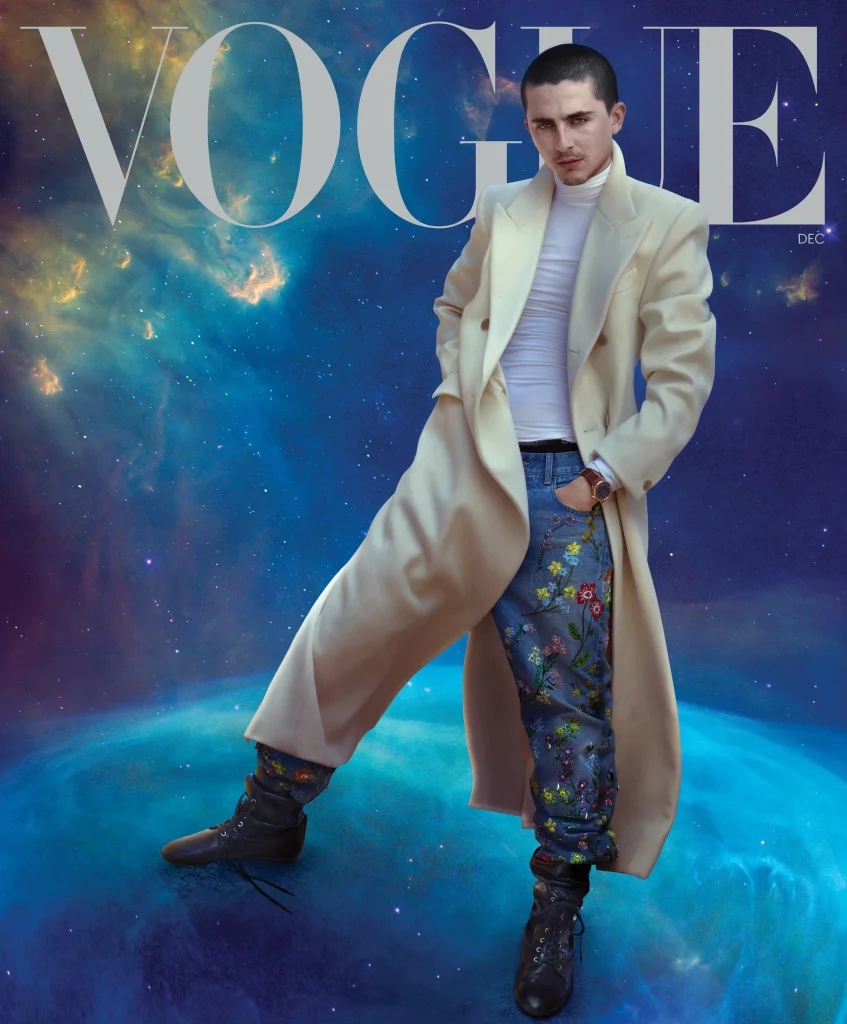
Today, you will learn how to remove a background, isolate a subject, and position that subject in front of your magazine's masthead (the large title at the top).
Example of a masthead appearing behind the subject.

The same effect can be used with pets.
Key Photoshop Tools
-
Object Selection Tool: Automatically selects a person, animal, or object.
-
Select Subject: Uses Photoshop to identify the main subject.
-
Remove Background: Removes the background from a photograph.
-
Layer Mask: Hides or reveals parts of an image without permanently deleting them.
-
Layers Panel: Controls which objects appear in front of or behind others.
2. Photoshop Tutorial: Put Your Subject in Front of the Masthead

Step 1: Add Your Cover Photo
Open your magazine cover document in Photoshop. Place a high-quality photograph of a person or pet on your cover. Make sure the subject's head is near the top of the page.

Step 2: Select Your Subject
Duplicate your photo layer using Ctrl + J. Select the duplicate, then choose Select > Subject. Click the Add Layer Mask button to hide the background. Refine the mask if needed, especially around hair or fur.

Step 3: Add Your Masthead
Use the Type Tool (T) to add your magazine's name. Choose a large, bold font and position the title across the top of the cover.

Step 4: Arrange Your Layers
In the Layers Panel, arrange them in this order:
-
Top: Subject with background removed
-
Middle: Magazine masthead
-
Bottom: Original photograph
Your subject will now appear in front of the masthead while the original background stays visible.
Watch Photoshop Tutorial
In-Class Magazine Activity: Create Your Cover Image
Your challenge is to create a professional magazine cover featuring a person or pet. The subject must overlap the masthead so the title appears behind them.
Magazine Cover Checklist
0 of 9 completed
Class Discussion
-
Why do magazine designers sometimes place the masthead behind a person's head?
-
What is the difference between deleting a background and using a layer mask?
-
Why is the order of layers important in Photoshop?
-
What makes a magazine cover look professional?
Homework: Complete Your Magazine Cover Image
Finish your magazine cover image using Photoshop. Make sure your subject is neatly separated from the background and overlaps your masthead.
Magazine Piece Added: Magazine Cover Image
Save your completed design as a PSD file so you can continue editing it for your final magazine project.
Submit a JPG to your tutor through Google Classroom