
Photoshop Playground
(Intro + Fun Effects)
Genesis 1:1
“In the beginning God created…”
Everything you create in this class is an opportunity to grow in skill, excellence, and purpose. Your work matters, and it reflects your effort and mindset.

Getting Comfortable in Photoshop
Today is all about becoming familiar with your workspace. Don’t worry about being perfect. The goal is to explore.
We will focus on:
- The Photoshop interface (what everything is and where it is located)
- The Tools Panel (brushes, shapes, move tool, eraser, etc.)
- The Layers Panel (how Photoshop builds images like stacked paper)
Think of layers like clear sheets stacked on top of each other. Each layer can hold part of your design, and you can move, edit, or remove each one without ruining the whole project.
Class Activity
Photoshop Playground Abstract Art
Your goal today is to create a colorful abstract design using only basic tools.
You must include:
- At least 5 different colors
- At least 3 tools (Brush Tool, Shape Tool, Gradient Tool, etc.)
- At least 5 layers
Steps:
- Open a new document (any size, like 1920x1080)
- Add a background color or gradient
- Use the Brush Tool to paint shapes, lines, or scribbles
- Add shapes (circles, squares, triangles)
- Move things around using the Move Tool
- Experiment with layer order (drag layers up and down)
- Try changing opacity on at least one layer
There is no wrong answer today. This is about exploration, not perfection.
Homework
Create a second abstract design at home using Photoshop.
Requirements:
- Use at least 3 different tools
- Use at least 3 layers
- Try at least one new tool you did not use in class
- Be creative with color, shapes, and movement
Optional challenge: Try making your abstract tell a “feeling” (peaceful, chaotic, joyful, energetic, etc.)
Reflection Thought
Creativity is not about copying what already exists. It is about bringing something new into the world. Just like creation began with God speaking order into chaos, you are learning to bring structure and beauty into blank space.
Next class, we will start learning how layers give you control over every part of your design.

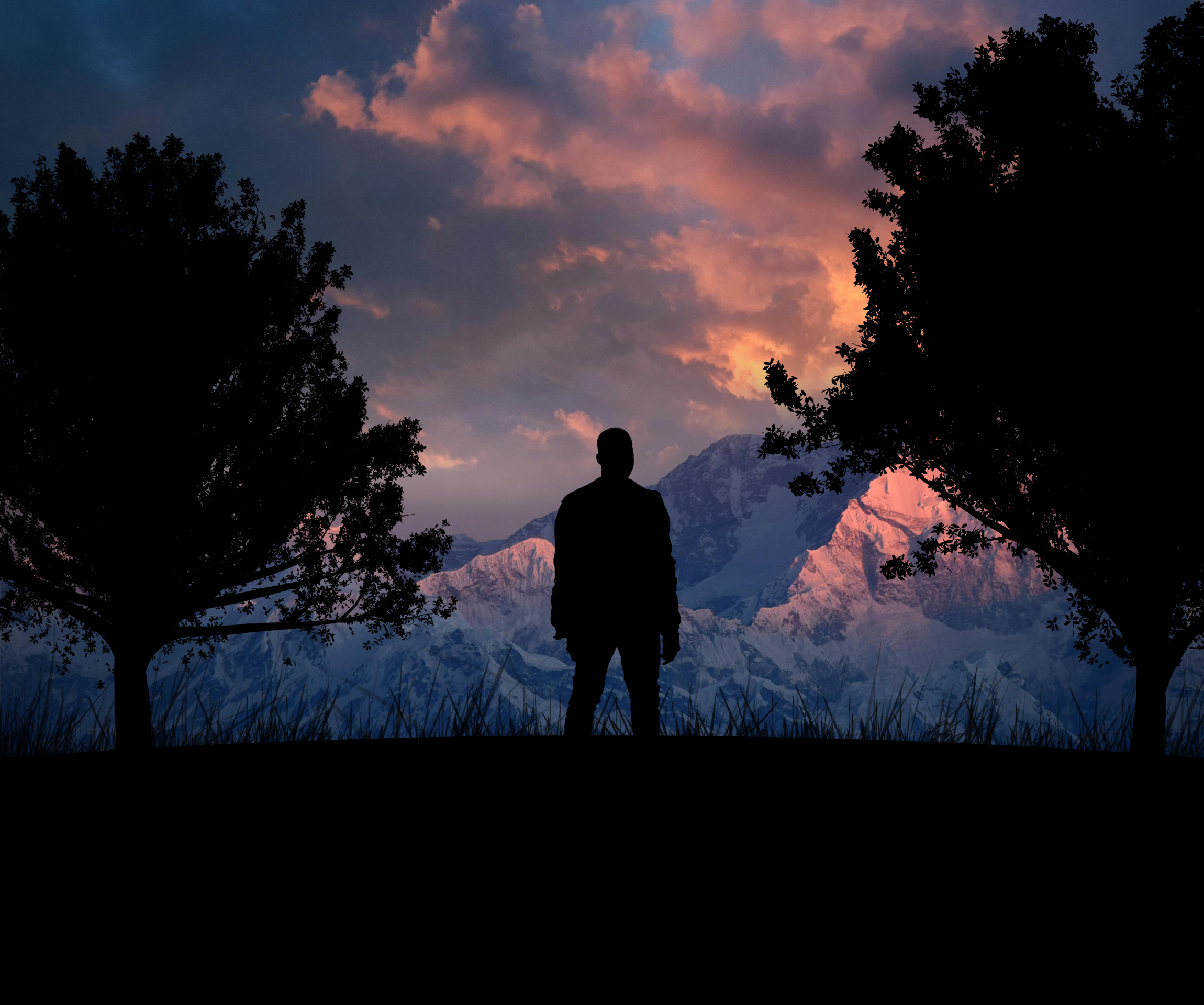
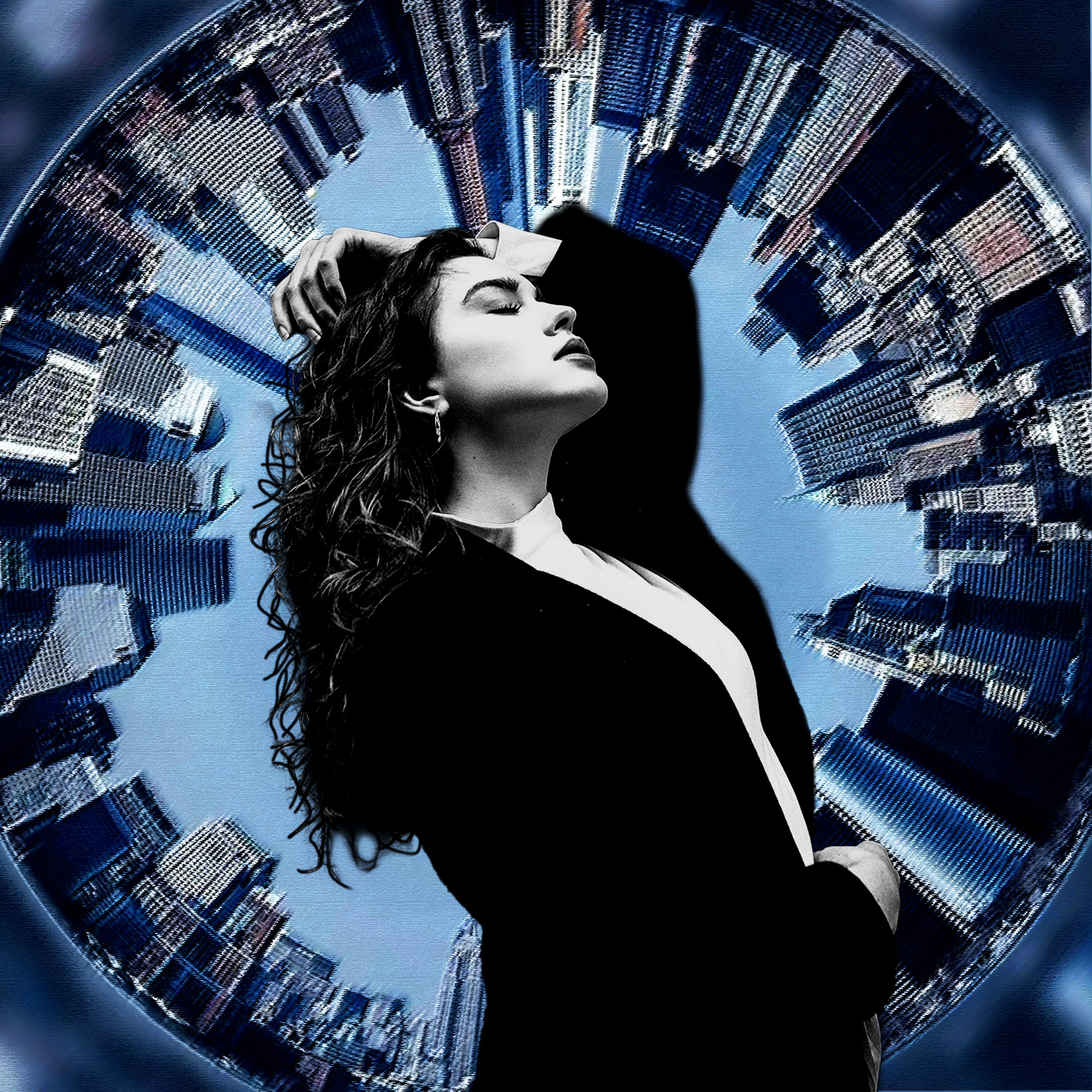
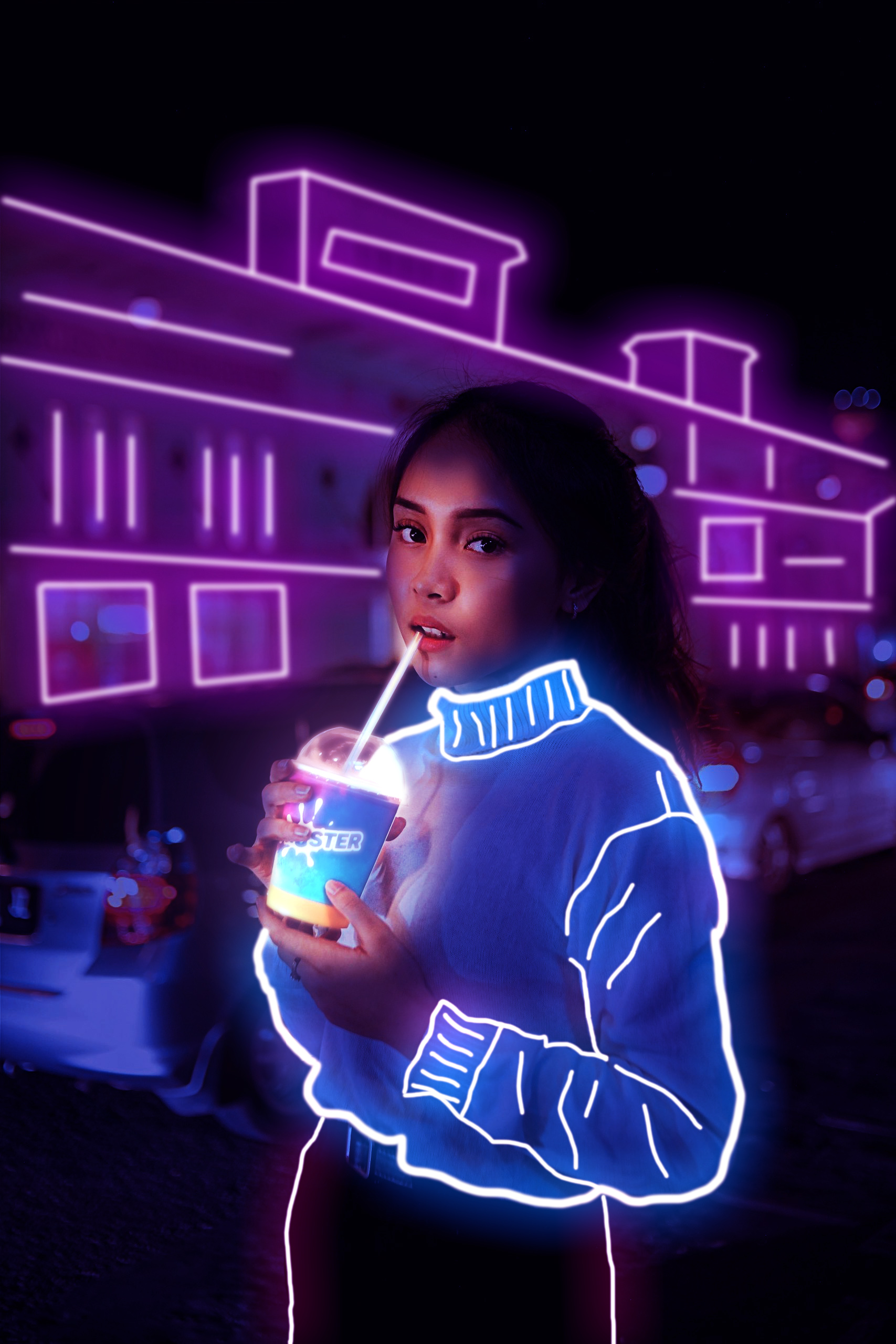
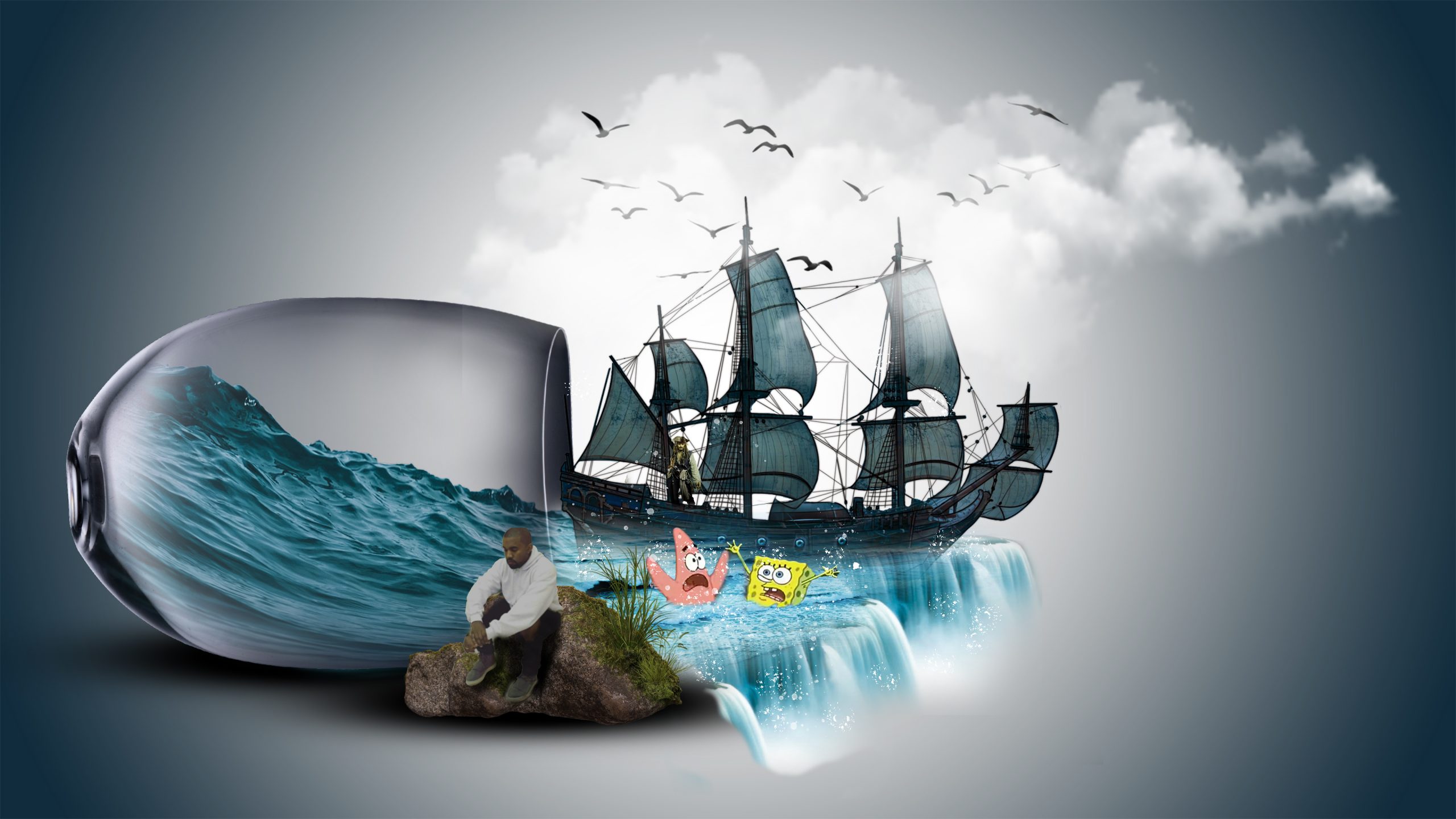
Basic Workspace Terms
Canvas
The area where your design lives (your workspace or “page”).
Document
The file you are working on in Photoshop.
Workspace
The layout of panels, tools, and menus on your screen.
Tools Panel Terms
Move Tool
Used to move objects or layers around.
Brush Tool
Used to paint or draw on your canvas.
Eraser Tool
Removes parts of an image or layer.
Shape Tool
Creates shapes like rectangles, circles, and lines.
Gradient Tool
Blends colors smoothly from one to another.
Text Tool
Adds words or text to your design.
Selection Tools
Used to select parts of an image (Marquee, Lasso, Quick Selection).
Layers Terms (VERY IMPORTANT)
Layer
Like a transparent sheet stacked on top of others. Each part of your design sits on its own layer.
Background Layer
The bottom layer of your project.
Layer Order
Which layer is on top or bottom (affects what you see).
Opacity
Controls how transparent a layer is.
Blending Modes
Changes how one layer interacts with the layer below it (can create cool effects).
Layer Mask
Hides or reveals parts of a layer without deleting anything.
Editing & Design Terms
Resolution
The quality of an image (higher = clearer).
Pixels
Tiny squares that make up your image.
Transform (Ctrl + T)
Resize, rotate, or stretch objects.
Crop Tool
Cuts part of your image.
Adjustment Layers
Used to change color, brightness, contrast without damaging the image.
Color Terms
Foreground Color
The main color you are using.
Background Color
The secondary color.
RGB
Color mode used for screens (Red, Green, Blue).
File Terms
PSD File
Photoshop file that keeps all layers editable.
JPEG (JPG)
Compressed image for sharing.
PNG
Image with transparent background support.